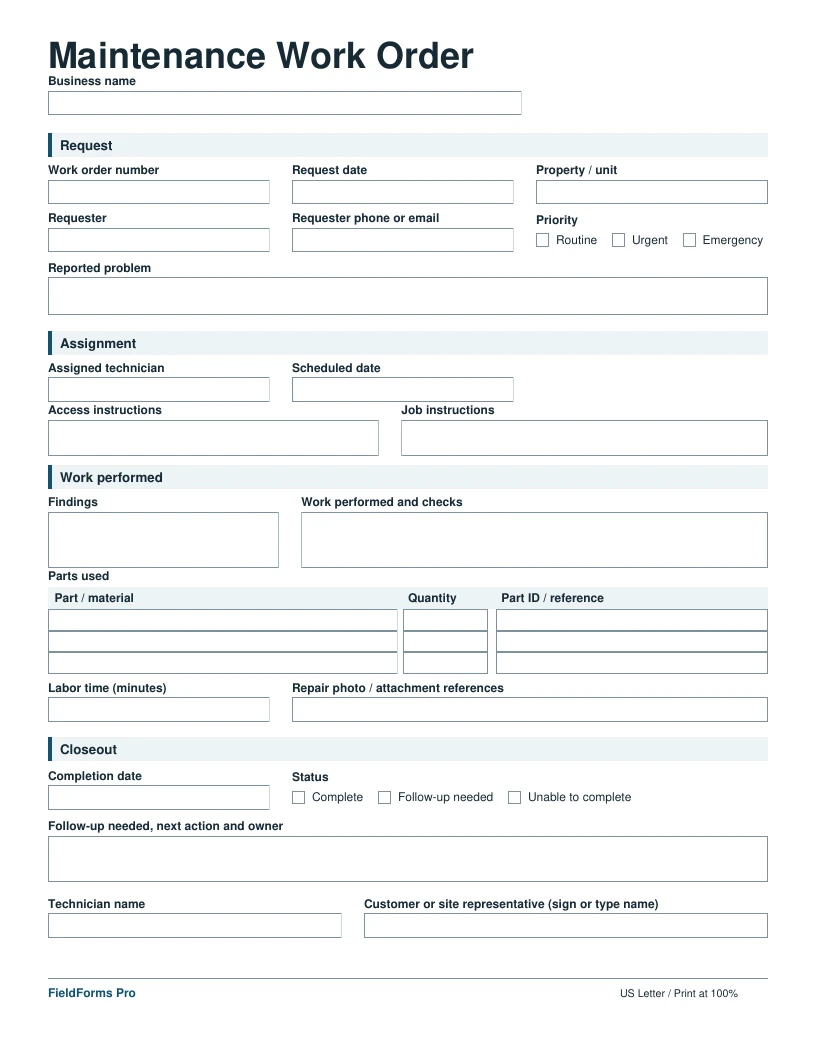
Completed work order form
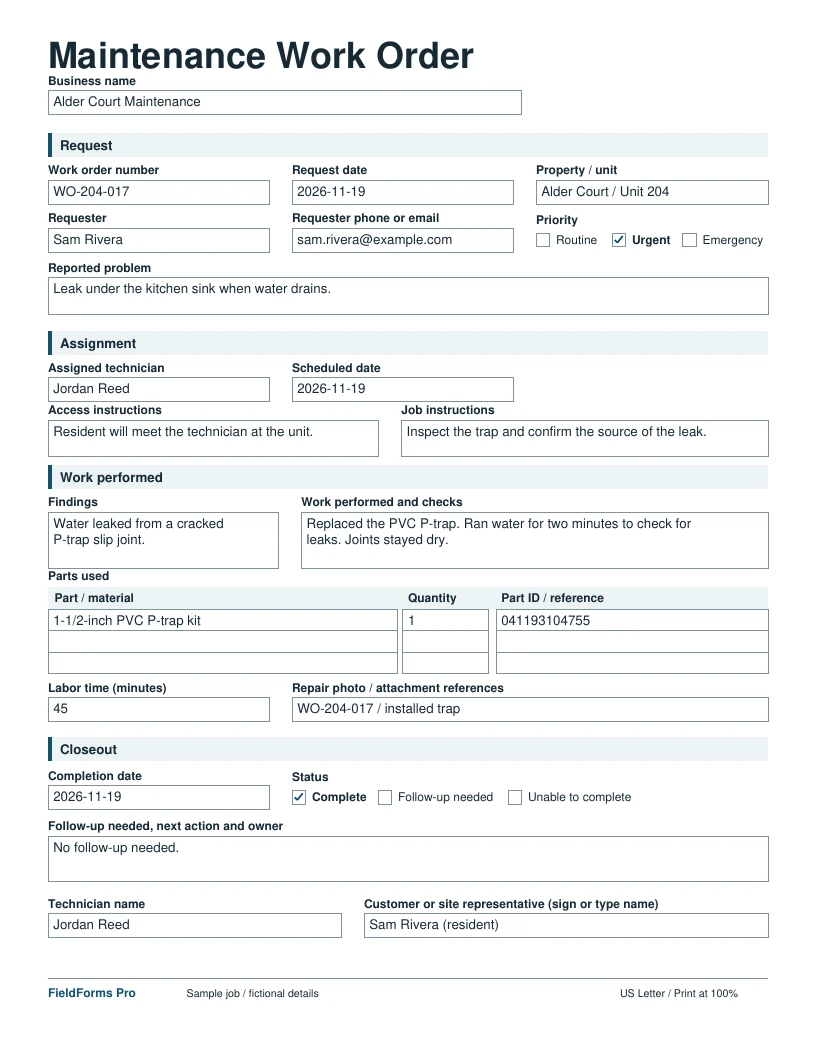
The one-page template filled in with the job details, labor, repair check, and sign-off.
 View filled-out template
Give technicians the details they need to start a job and the office a record of what was fixed, how it was checked, and what still needs attention.
Free to download. Fill it in with a PDF reader or print it on one US Letter page.
 Preview blank PDF
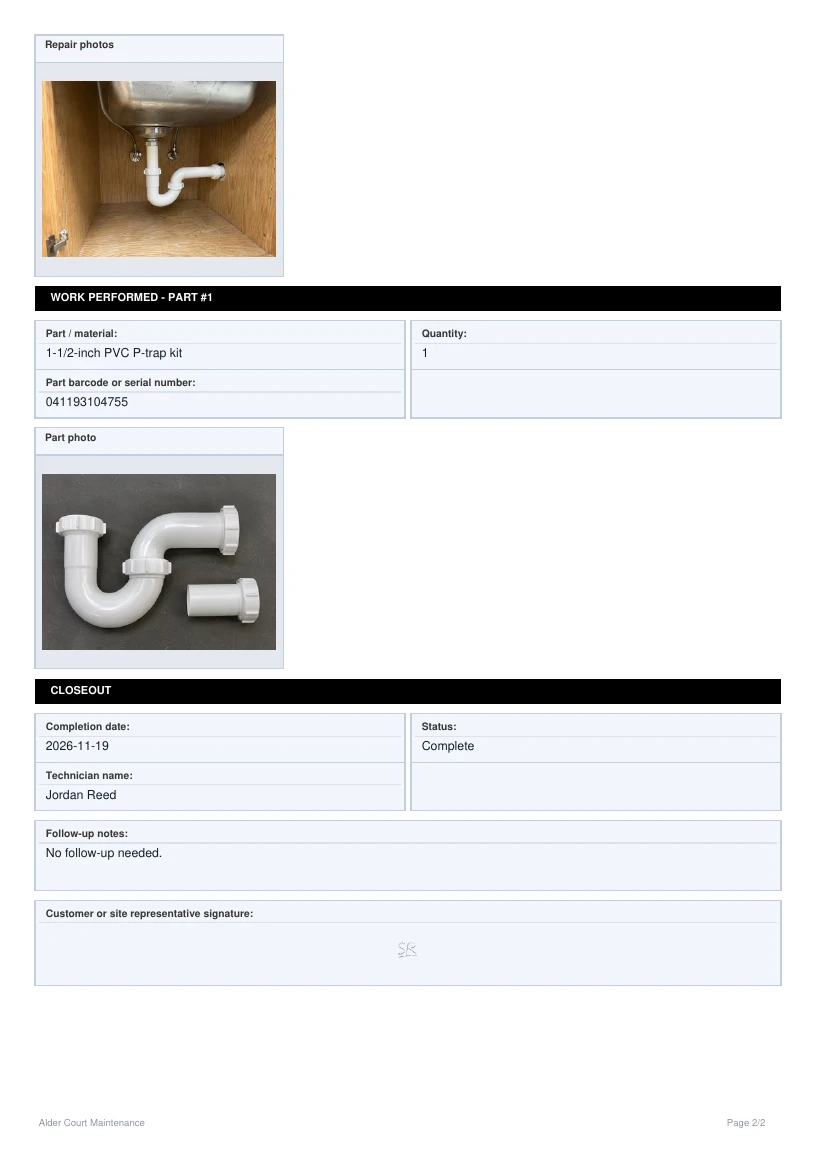
A resident reports a leak under the kitchen sink. The technician replaces a cracked P-trap, runs water for two minutes, and confirms the joints stay dry. See how the same 45-minute repair is documented on the work order form and in the PDF the office can receive from FieldForms Pro. The job details and photos are illustrative.
The one-page template filled in with the job details, labor, repair check, and sign-off.
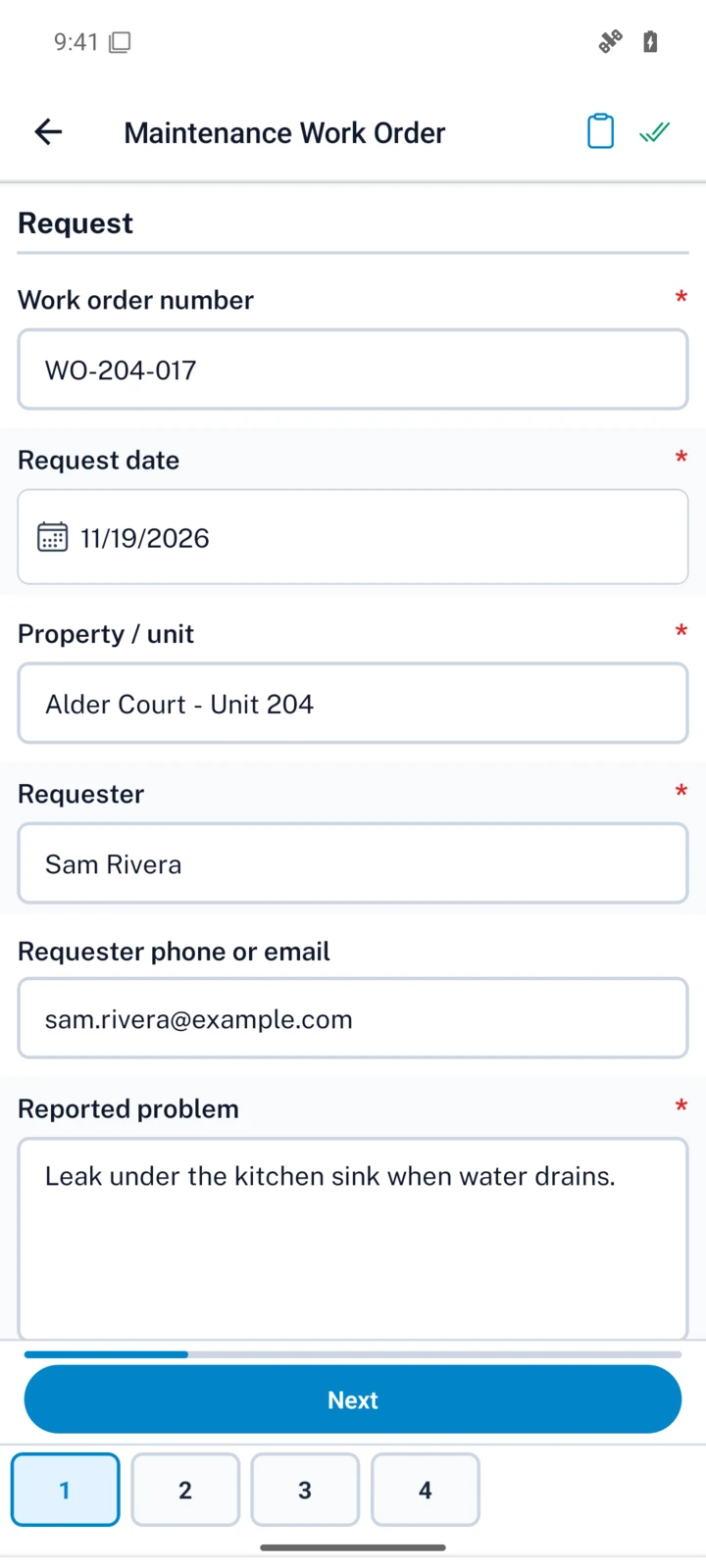
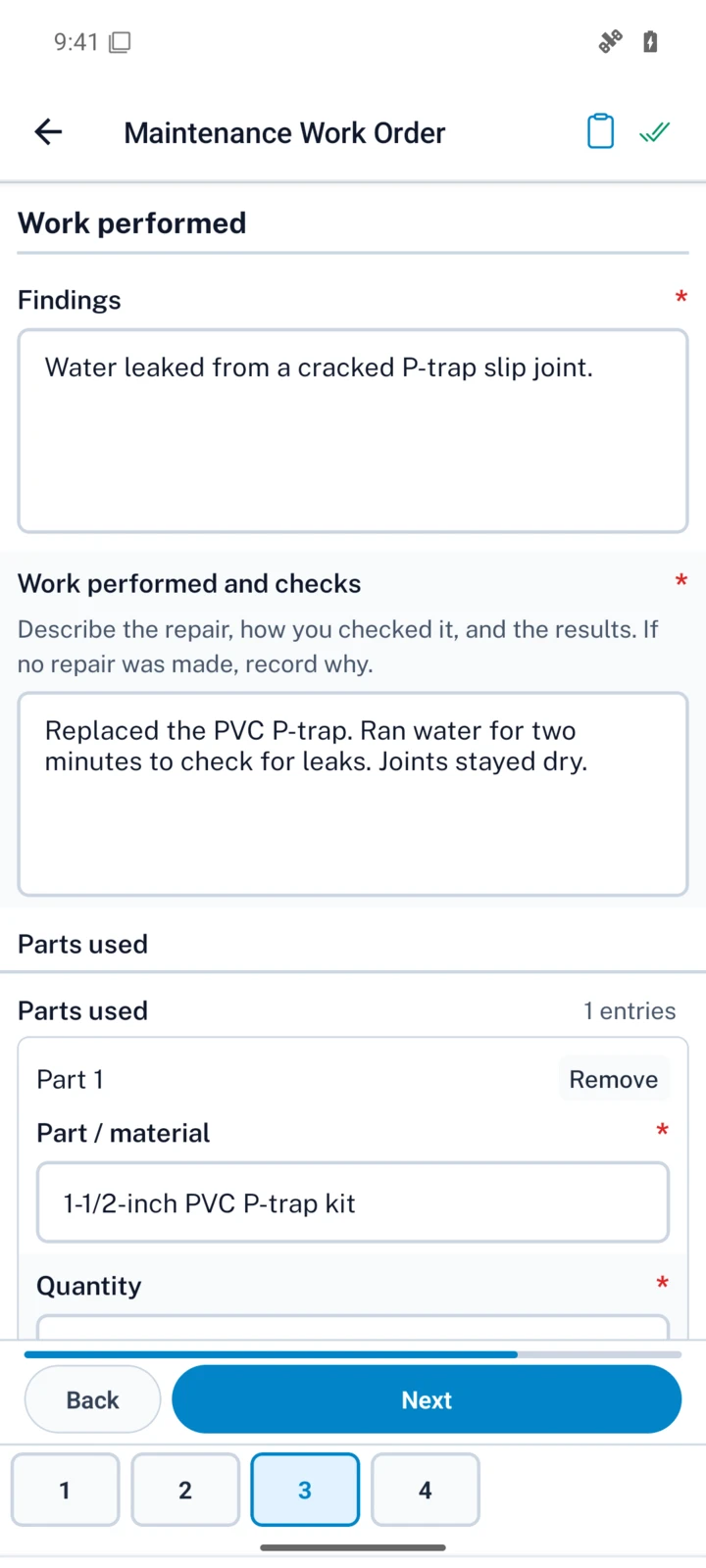
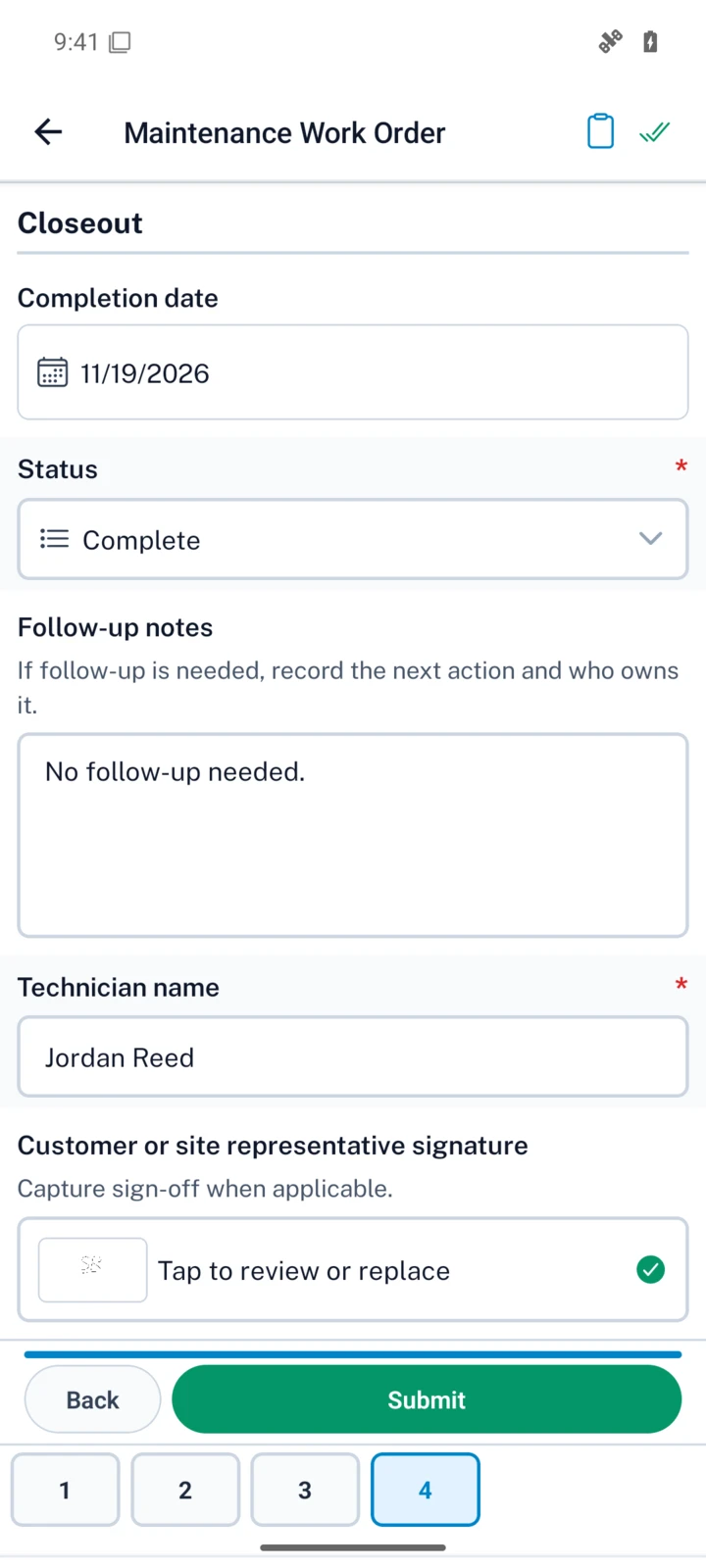
View filled-out templateThe technician submits from their phone. FieldForms Pro generates a PDF with the photos and signature and can email it to the office.
 View completed report
Describe the repair, how you checked it, and the results. If no repair was made, record why.
Scan the package barcode or enter the serial number. Use one row per serialized part.
If follow-up is needed, record the next action and who owns it.
Capture sign-off when applicable.
Give each job a unique work order number. Record who reported the issue, how to reach them, and the exact property or unit. Describe the symptom in the requester’s own terms.
Name the assigned technician and set the priority and scheduled date. Record where to pick up a key or who will meet the technician. Use job instructions for the work the technician should do on arrival.
Record what the technician found, what they changed, and how they checked the result. List the parts and quantities used and log actual time on site. Reference any photos by work order number so the office can match them to the repair.
Record the visit outcome and the technician’s name. If a return visit is needed, name the next action and who owns it. Capture acknowledgement from the resident or site representative when your team requires it.
Open the fillable PDF in a PDF reader and save a copy with the work order number, or print it on US Letter paper. Use Word to add your logo or change the fields and parts table.
The office fills in the first two sections before handing the order to the technician. Add a contact and access instructions when someone needs to arrange entry.
The technician records the finding, repair, and test result. For Unit 204, that means a cracked joint, a replacement trap, and dry joints after a two-minute water test.
Save or scan the completed job record and share it with any referenced photos. When your team uses FieldForms Pro, the technician submits the form from their phone and the office can receive the report automatically.
A maintenance work order assigns a repair or upkeep task and records what happened. It gives the technician the location, priority, and instructions, then gives the office a record of findings, work performed, parts, labor, and any remaining action.
A request reports the issue. A work order takes that request through assignment, repair, and closeout. For example, a resident reports a leak, then the supervisor creates a work order that tells the technician which unit to visit and gives them space to record the repair.
Yes. Download the fillable PDF or editable Word file directly, with no account or email address required.
Yes. Open the PDF in a PDF reader that supports form fields, fill in the job details, and save a copy. To customize the layout, open the Word file in Microsoft Word or upload it to Google Docs.
Yes. Use Job instructions for the scheduled checks and record the outcome under Work performed and checks. Create a work order for each visit so dates and results are easy to look up.
Use the template during your FieldForms Pro trial. See pricing for ongoing use.
Use FieldForms Pro when technicians regularly send repair records back to the office. They can enter notes, take photos, and collect a signature on site, even offline. Set up PDF delivery to send the report when the submission reaches FieldForms Pro.
Add to an existing FieldForms Pro workspace