PDF Reports
Send PDF reports from submitted forms
Include job details, photos, and signatures in a PDF. Download reports from the portal or set up automatic email delivery.

Export a PDF for the job and for each item
Give each vehicle, unit, or other item its own page in the form. You can then export a PDF for each item along with the full report.
- Add your organization’s branding to the header
- Include photos, signatures, and GPS locations
- Choose which fields to exclude from the PDF
For example, a fleet installation can produce one report for the job and a separate PDF for each vehicle.
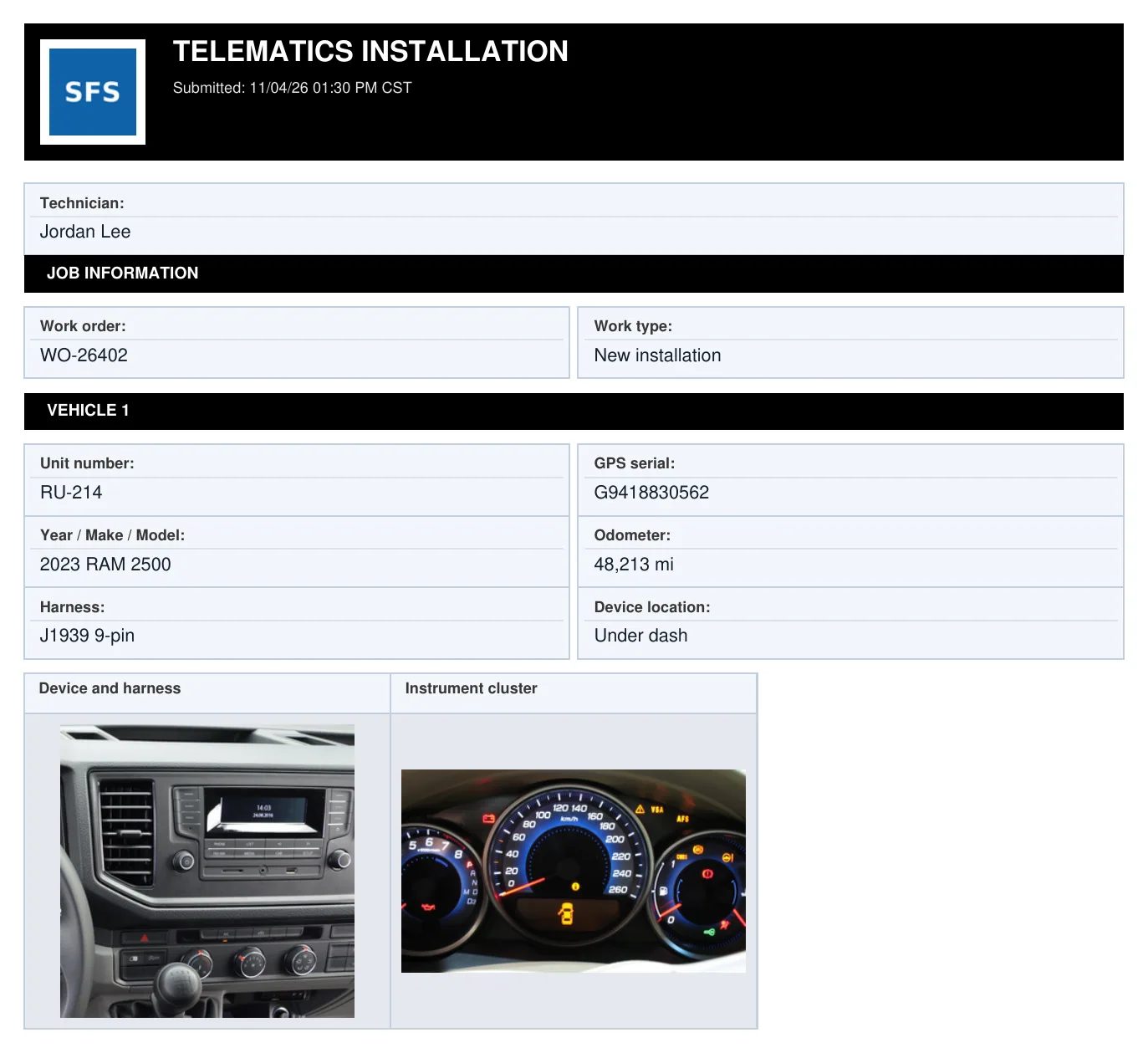
Find, export, and resend reports
Filter submissions by status, form, or date. Open a submission to review individual entries, export its PDF, or resend it to the configured recipients.


Automatic delivery
Choose who receives the PDF when the form is submitted.
CSV export
Export the same submission as CSV with the columns you choose.
Can each subform entry get its own PDF?
Yes. Set up a full-page subform, then export the combined report with a separate PDF for each entry.
Can I keep internal notes out of the customer’s PDF?
Yes. Any field can be excluded from the PDF, the CSV export, or both.
How do reports reach customers?
Download a PDF to share it, or add recipients in the form’s delivery settings so they receive the PDF when the form is submitted.
Related pages
Integrations & Google Sheets
Look up records from Google Sheets while filling in a form, use submitted answers to update matching rows, and export your data.
Form Builder
Build mobile forms with drag-and-drop fields, repeating subforms, conditional logic, and settings for PDF and CSV exports.
Appliance Repair
Set up service tickets for appliance repair. Record model and serial numbers, error codes, parts, and labor, then export a PDF.
Try PDF reports
Submit a test form and download its PDF from the portal.
30-day free trial · Cancel anytime · Admin seats free